Documentation
Project Setup
A step-by-step guide to setting up your development environment for PixelScript, including installing necessary tools and configuring your IDE.
Prerequisites
PixelScript comes in a few flavors, depending on your needs. But for this guide we'll be focussing on the most common Paper implementation.
To follow along, make sure that you:
- Strong foundational knowledge of JavaScript/TypeScript
- PixelScript uses modern JavaScript (ES6+) syntax and features, so familiarity with these concepts is essential.
- Have a running local Minecraft server
- Preferably a Paper server, but Spigot should also work
- Cheat and create one instantly with the mc cli
- Have an IDE installed
- IntelliJ backed IDE's like IDEA Community/Ultimate or Webstorm are recommended because of their great
.d.tsparsing, but visual studio code (or any other editor) will also do
- IntelliJ backed IDE's like IDEA Community/Ultimate or Webstorm are recommended because of their great
- A valid PixelScript license
- Java 21+ installed
- Tailored builds for lower JDK versions are available upon request, though they may lack some features
- A cup of tea/coffee (optionally add some baileys, we're gonna have some fun!)
Project repository
PixelScripts are typically monolithic codebases, where all servers in your network share one set of scripts, with the environment determining which ones are active at any given time.
Because of this, we recommend setting up a single repository for your PixelScript codebase, which can then be cloned to any server that needs it.
Details on how to structure your scripts can be found in the Scripts and script management guide. But for now, just initialize an empty git repository in plugins/PixelScript/scripts on your local server.
About the Development Environment
Hot-reloading is great, but an environment that works for you is better.
Working on a remote server can be the easiest route to get started, but doesn't offer you the best experience. Instead, we recommend setting up a local development environment where possible.
This is because PixelScript will continuously generate new typescript definition files (.d.ts) based on the Java classes you expose to your scripts.
If you're working on a remote server, your IDE will continuously upload your files as you edit them, but it doesn't pull in the generated .d.ts files in the background (until you open them)
Running a fully local environment allows your IDE to pick up on these changes immediately, giving you the best autocompletion as you go.
Setting up a local server
So you're never going to believe this, but you need to install the Plugin first.
- Install the latest version of the PixelScript plugin JAR into your server's
pluginsfolder. - Start your server once to generate the default configuration files.
- Drop your
license.datfile into theplugins/PixelScriptfolder. If you don't have one yet, then wait for the server to print your HWID in the console and request an activation. This will then automatically install the license when accepted.- The first installation requires an active internet connection to automatically download your license, but your server can work completely offline when this file is present. An outage on our end wont take your server down, pinky promise!
You should see a directory structure like this in the plugins/PixelScript folder
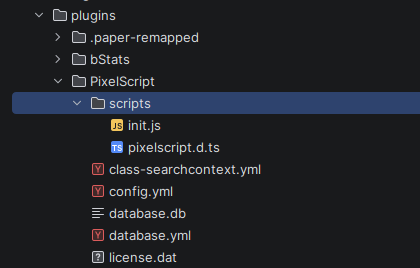
If you do, then you're good to go!
I always like to create a new IDE workspace inside the PixelScript folder specifically for my scripts, so I can keep everything related to PixelScript in one place.
And with that, you're all set to move onto the next step; configuration!
A concept guide for Java and Skript developers transitioning to PixelScript.
A walkthrough of the PixelScript configuration options and how to customize them for your server setup.